Showing posts with label Wordpress. Show all posts

Get template file name in Wordpress easily!


You found a nice template for your Wordpress website, and then you noticed that you want to make some changes in that template to make it friendlier with your website. You have no idea which template file is delivering that content, and you don’t want to mess with a lot of codes to find that file name. You want a method to get the template file name easily.

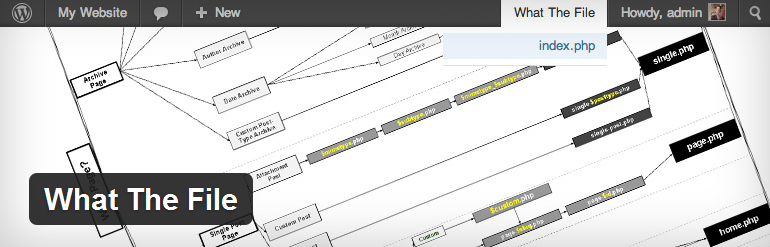
Ok, here I have found an awesome, yet simple wordpress plugin which will do that task for you. It’s called “What the File!”.  It will show you the name of the template file which delivers the current content. Simple.


get the template file name in wordpress. What the File

First go to this link and Download the plugin. (or directly install it from Wordpress admin)

Once you complete the installation process and enabled the plugin, go to the page which you need to find the template file.

Then on the top admin navigation bar, you will find a new menu item called ‘What the File’. When you click on it, a dropdown menu will open with the template file name :).

You can click on that file name link. It will take you to the wordpress template editor page with that file opened their. All you have to do is edit.

If you wish to edit it outside the Wordpress admin panel, you can get the path and file name, then login through your FTP and make changes and upload it back.

I hope this article will surely save your time :) Please leave a comment to appreciate the time I spent to write this article if it was helpful to you.

Happy template editing ;)

Fixing Wordpress Error : All the pages redirecting to the index.php

Wordpress Bug


fix wordpress bug in permalinks
As the title suggests, this is another error/bug you may come across while working with Wordpress. I recently found this error in one of the Wordpress websites and I was confused as I had no idea how it happened. All I could remember was the site was working properly few days / weeks back.  So as usual I checked to see if any newly installed plugins have caused this bug. But I couldn't find a proper solution. So I had to use Google to find any clues as to what might have caused this and I found one question at Stackoverflow. Luckily I found  a good hint there, but nobody had given a proper answer.

Following on that hint, I could solve my problem and I thought I should keep it written in my blog so that someday, somebody may find this  article useful :)  Please read below to understand the issue and how to fix it quickly.

What is the Error?
Well, it is not a kind of error that you may find usually in your wordpress website. But if you got hit, you may go crazy since this error (rather I would call it a bug, or whatever) doesn't stop running your wordpress website or does no harm except it will ruin your user's experience. What it does is, all your pages will be redirected to your homepage. What a disaster, yeah? Your visitors who are coming only to read your content will find a buggy site and leave it quickly without knowing that it is a bug. Besides, who would care about a bug in someone else's website? They will go to another one because there are plenty of websites delivering the same kind of information.

How to Identify the Error?
Check your website in regular time periods to know that it is working properly. (Open few common links and make sure that they open the correct page.). I am not saying you may definitely get this bug in your wordpress website, but who knows? 

What is the reason?
As I mentioned above, I still have no idea to confirm what exactly caused this bug. But most probably, it might be due to a malfunctioning plugin or a bug in your template. I am confident that this bug is not coming bundled with the Wordpress original download package. That is why you find this bug in your website after few weeks or months after the installation.


How to Fix this?
Here comes the most useful and the easiest part of this article :)

Whatever the reason it would be, you can fix this bug in less than 30 seconds.

Step 01 :
Log into your Wordpress admin area.
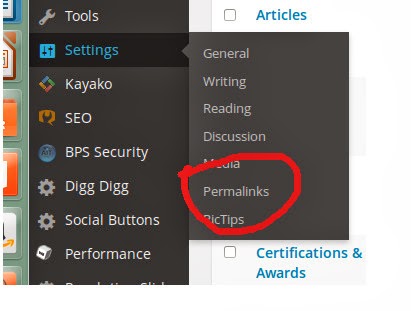
Step 02 : Hover your mouse over “Settings” in your admin dashboard menu bar.

worpdress permalinks bug

Step 03 : Click on “Permalinks” from the menu appeared after step 02.
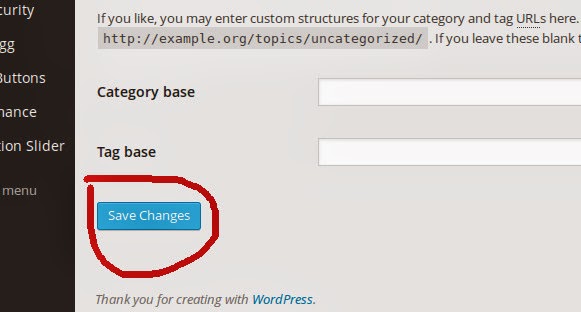
Step 04 : Now, you will see the Permalinks options page, “Do not change anything”. Just Click on the “Save Changes” button.

worpdress template bug redirect to home page

Step 05 : Check whether your site is working fine now.


Additional Steps (Optional)
Step 06 :
If the above solution didn't work for you, leave a comment here. Sometimes we can discuss further.

OR


If it worked for you, as a way of showing you liked that, leave a comment here :)

That's it....you have fixed your Wordpress website's annoying Bug in less than 30 seconds...Just a click of a button. But you know? I had to dig much deeper in Google's search results to find this solution. If you think this will be useful to your friends you can share it over social network sites like Google+, Facebook or Twitter.

SEO has changed so much over the last few years. They need a lot of shares over social networks...That is why people say sharing is caring :)

Wordpress Bug, Wordpress pages redirecting to index.php, Wordpress Hack, Wordpress Permalink error, Wordpress Error, Wordpress not showing correct page, wordpress permalinks not working
How to disable Wordpress plugins manually using database

how to disable wordpress plugins manuallyIf you are working with a Wordpress website, you may always come up with new problems. There is a common problem for most of the wordpress users which is known as “white screen of death” or the blank screen error. When this kind of an error is occurred in a wordpress website, most of the website owners get panic because they don’t have any idea how it happened or how to fix it. So if you would have to face this kind of a scenario, all you have to do is be relaxed, and think how it would have happened. If everything was working fine before, and you suddenly faced this issue, probably it might be due to an error in one of your plugins. One thing you can try is disable all the plugins and try whether the site works normally. This is not the ultimate solution for the White Screen Error, but it may fix the issue most of the times.

Wordpress website owners face many other issues with their plugins. Plugins which were working properly may start to malfunction suddenly and sometimes when the problem becomes worst, the admin login will also be blocked due to the error. So in this article I am going to talk about how you can disable your plugins without accessing your worpdress admin area. I will show you how you can disable all the plugins at once with a simple query, like explained in this article (which inspired me to write this article.) and also I will show you how you can disable a single plugin. (This was not discussed in the above article). Since this single plugin disable method was not discussed in that article, I wanted to write my own and keep the Blog readers updated about the method.

You should keep this page bookmarked because I know you will definitely need this someday :) (If you are using wordpress, or intended to do so in future.)  So keep reading, and come back when you will have to face this issue: D

Let’s start...

What we are going to do here is enter into our Wordpress database, and delete the particular record for plugins so that all the plugins will be disabled. This can be done using any mysql management software, or simply by using the PhpMyAdmin which comes with your Cpanel installation.

First connect to your wordpress database using any of the methods above. Then you have to run the following query to select the plugins which are already installed in your wordpress website.


SELECT * FROM wp_options WHERE option_name = 'active_plugins';
The ‘active_plugins’ field may contain a large string similar to the below, depending on the plugins you have installed.

To make things easy, copy the whole string and paste into a text editor (notepad, notepad++ or whatever you like).

Now, if you want to disable all the plugins you have installed, simply make the ‘active_plugins’ field blank by deleting its content, and save it. 

You don’t need to be scared to delete this value, because deleting the value in this field doesn’t make your plugins disappear forever. They will only be deactivated, and you can re-activate them back by logging into the Wordpress admin area. 

By now, you have successfully deactivated all the plugins manually, and everything should be fine, and you should be able to login into the admin panel if the problem was with one of your plugins.

If you could log in, then it is clear that one or more of your plugins are not working properly, you can find the malfunctioned plugin by re enabling all the plugins one by one.

Now let’s see how you can disable a single plugin using the database. So as I explained above, I have run the query on my Wordpress website, and copied the content in the active_plugins field to here.

This is what I had in my ‘active_plugins’ field. 

a:9:{i:0;s:24:"blog-icons/blogicons.php";i:1;s:45:"bulletproof-security/bulletproof-security.php";i:2;s:23:"digg-digg/digg-digg.php";i:3;s:17:"kayako/kayako.php";i:4;s:19:"pictips/pictips.php";i:5;s:56:"slick-social-share-buttons/dcwp_slick_social_buttons.php";i:6;s:31:"what-the-file/what-the-file.php";i:7;s:41:"wordpress-importer/wordpress-importer.php";i:8;s:24:"wordpress-seo/wp-seo.php";}

To make it more clear, I have rewritten the same in new lines below;

a:9:{
i:0;s:24:"blog-icons/blogicons.php";
i:1;s:45:"bulletproof-security/bulletproof-security.php";
i:2;s:23:"digg-digg/digg-digg.php";
i:3;s:17:"kayako/kayako.php";
i:4;s:19:"pictips/pictips.php";
i:5;s:56:"slick-social-share-buttons/dcwp_slick_social_buttons.php";
i:6;s:31:"what-the-file/what-the-file.php";
i:7;s:41:"wordpress-importer/wordpress-importer.php";
i:8;s:24:"wordpress-seo/wp-seo.php";
}

If you read the above code carefully, you will notice that the number after the letter a:, is the number of plugins I have installed. It is 9 in this case. (You can count the number of lines.) And also, you can understand that each of the lines represents a plugin, and by the name mentioned in it, you can identify what plugin it is.

Suppose I wanted to disable the Worpress Seo plugin. It is the last one in my list. Now I will rewrite the list by removing the SEO plugin from the list as below.

a:8:{
i:0;s:24:"blog-icons/blogicons.php";
i:1;s:45:"bulletproof-security/bulletproof-security.php";
i:2;s:23:"digg-digg/digg-digg.php";
i:3;s:17:"kayako/kayako.php";
i:4;s:19:"pictips/pictips.php";
i:5;s:56:"slick-social-share-buttons/dcwp_slick_social_buttons.php";
i:6;s:31:"what-the-file/what-the-file.php";
i:7;s:41:"wordpress-importer/wordpress-importer.php";
}

I have deleted the last line, which was the line representing the SEO plugin, and also note that I have made the number in the first line to 8, which means one plugin is removed from the total number of plugins I had. Now I will paste this back into active_plugins field and I will save it.

That is it. Now you have learnt how to disable a plugin using the database. If I log back into the admin panel, I will see that the SEO plugin is disabled, and I can enable it anytime if I want. Also you do not need to worry about anything because all the data saved by the plugin will also be preserved.

Please leave your comment or idea about this article because it will be helpful for me to develop this blog.

This article is about how to

Disable Wordpress Plugins manually


People used following queries to reach this article.
how to disable plugin in wordpress database
how to disable plugins in wordpress manually 
how to disable plugin in wordpress database
how to disable plugin in wordpress
how to disable plugin updates in wordpress
how to remove wordpress plugin from database
how to remove wordpress plugin manually
how to remove wordpress plugins


How to change Excerpt length in Wordpress

change excerpt length wordpressIf you are using Wordpress as your blogging platform, there may be a common and an annoying problem to you. It is the popular question “how to change excerpt length in wordpress”. Yes, that’s why you are reading this :) I have good news for you. You will not have to worry about how you can change the excerpt length in wordpress anymore. Here I have brought the solution. It is super easy. If you are in a hurry, and want the solution immediately, Click here to Jump direct to the solution! I know all my readers will not be the same. Some may be having the problem, and some may not. But all of them are reading this article. So I am writing for everyone. If you are just curious about this Wordpress issue, please keep on reading :) So as I said, sometimes you may never have had this problem before. And you may even have no idea about Wordpress. That’s not a problem. If you want to know what I am talking about, you are also welcome to keep reading.

So, what is Wordpress?


Ok, Wordpress is one of the most popular CMS (Content Management Systems) being used by many web developers to build blogs and websites. Wordpress is so user friendly, that even a person who has no knowledge in Web Development also can easily manage a website by himself / herself.


What is an excerpt? Where the excerpt is located?


Excerpt, by the meaning of the word itself, the excerpt means an extraction of a piece of text from your blog articles. Simply, it is a small selection of the content within your blog post. Excerpts are located in the Blogs page of your Wordpress blog. When you check the blog page of a website, you can see the titles and a small paragraph under each of the titles, with a link to the Full Blog Post. This small paragraph is called the excerpt.


Why you need an excerpt?


Personally I think it is very much important to set up a blog with excerpts. The reason as I am seeing is, a Blog is a place which gets updated frequently with fresh contents. Then it is obvious that many people are visiting the blog to read the articles. If you are displaying the whole article content without excerpts, and you are having 05 blog posts per page, the page is going to be very lengthy, causing the page to load very slower. Besides, the visitors may be interested in different topics, and they may be seeking the right article for them. If so, you are going to lose the readers. Nobody is going to read lengthy articles just to find whether it matches their interest or not. But simply by having a blog post page with excerpts, you can display many number of blog posts in a single page. Also it will reduce the page load time. And also it makes easier for people to find the right article by reading the title and the excerpt only.


What is the problem with the current excerpt length in Wordpress?


If you do not have any problem with the current excerpt length, then everything is OK. But the most common problem people having with the Wordpress excerpt is the length of it. By default, the Wordpress excerpt length is 55 words. Some people find this too lengthy and some finds it is very short. Whatever the condition you are in, you can change the excerpt length as you wish. Being too short, the excerpt makes the page looks emptier. On the other hand, being too lengthy will make it appear more crowded, and it will also make the content unclear for the visitors. So you must be careful when selecting the right excerpt length for your blogs. First experiment with few variant number of words and come to the final value. It will help you to increase your page views as well.


How to change the Wordpress excerpt length?


The only option available at the moment for this is through editing the source code. Wordpress development team has not included an option within the admin backend to change this value. But it is not a problem at all. You can do it yourself. Just Go to your template Options, and Click on Edit Files. Then under that, on the right hand side (most probably) you will see the list of files being used by the template. Scroll down and select “functions.php” file. Click on it so that it will be open in the text box for you to edit. Then simply paste the following code within the functions.php file. And you have done changing the Wordpress excerpt length.

function custom_excerpt_length( $length )
{
 return 20;


add_filter( 'excerpt_length', 'custom_excerpt_length', 999 ); 

Be sure to paste the code as it is, and
then change the values accordingly. All you need to do is change the above ‘20’ value to the number you want. Also make sure you are pasting the code within the php tags.
Warning: It is always advised to get a backup of the files you are editing so that you can replace it with the original file if anything went wrong. In the meantime, it is highly advised to always do the editing of files through FTP. In case you have made any code incorrect, there is a possibility to get the site to halt working. If you are unsure about what you are doing, please seek the advice of a person who knows about using FTP, coding etc. This is for your own good :)
I hope you enjoyed reading the article. Please leave your comments and ideas about this article, whether it was useful, or have you learnt anything from this. Also please add a comment if you need any help in changing the above codes.

The Best Social Sharing Plugin for Wordpress!

Best Wordpress Social Sharing Plugin
Wordpress....You Wanna be Social?
Today I am going to introduce you the Best Social Sharing Plugin for Wordpress. There is no doubt that Wordpress is the best Open Source Content Management System (CMS) available today. The main reason for its popularity is the ability to use Wordpress for any kind of a website. It can be used either as a simple Blog or as a complete Website. All you have to do is change few values in the admin area. This special ability has made many webmasters to shift from their old custom developed websites to Wordpress powered websites.  Wordpress gives you easy control of your website in a single place from creating pages, creating blog posts to managing the SEO tasks.

If you are using Wordpress, you may want to read this article which I wrote about a security measure in Wordpress titled Wordpress Hacking.

OK. Enough talk about Wordpress? Yes, let’s jump to our topic.

So today I’m going to share one of my experiences with an awesome Wordpress plugin, which will be really helpful to make your Social Presence Strong. Social Media Marketing or promoting your content over the Social Media is an essential task today when it comes to SEO. That is because our big brother Google has fallen in love with Social Networks a few years back and they wants us to engage more in social media :) So I am here today to introduce you a nice plugin for that.

I guess you may have already tried several plugins to insert a Social Sharing Widget in your blog / Website to increase Social Media Shares and end up with finding a bug or some mistakes in the plugin. That was the same scenario for me as well. I did a lot of research to find out the best plugin that will fit my requirement, which was really simple. I just wanted to insert a social share buttons in my Posts and the Pages with the exact Shares, Likes, Tweets or whatever the counts. Most of the Plugins failed to accomplish this simple task.

But, at last I found this awesome plugin called Dig Dig. It was really good that I could remove all the other plugins I already had for Social Sharing.

Dig Dig plugin is absolutely a nice plugin, but nobody is perfect yeah? I found a few bugs in it too. Actually they were not accountable when compared with its nice appearance and the user friendliness. Actually the fault was with my template. Dig Dig was not working smoothly with my template, but still it was quite good though I had several problems with alignments.

The plugin provides two main alignment options as in the other plugins, basically as floating menu, or as a Horizontal bar. When compared to other plugins I have used, Did Dig gave me the actual counts as soon as my likes got increased. The other plugins that I have been using were not updating or not showing the real Shared count. So as a whole, I think Dig Dig is a nice plugin, and that has made me write a good review about it.

If you came here looking for a Wordpress plugin for Social Sharing, I recommend Dig Dig for you. You can install it and try whether it matches your requirements. Why we really drop many great plugins is that the requirements of each of us are different. The main idea is to add a Plugin to display some Social Sharing buttons in our Wordpress website along with the Social Sharing counts. The developers may have already done it. But they are not targeting the usability. If the Dig Dig developers also can target more on usability of the plugin with some major Wordpress templates at least, it will reach to the number 01 plugin for social sharing in no time.

I would really appreciate if you could share your experiences with the other readers because that will be helpful for all. Sometimes I may be wrong. You may have found many mistakes in the same plugin which I have discussed here, or you may know some other great plugin than what I have mentioned. So you have a whole lot of things to Say...I am very happy to hear from you :)

Happy Wordpressing :D

This post is about

Social Sharing Plugin for Wordpress

Wordpress Latest 2013 Hack vulnerability!

wordpress hack 2013This is 2013, and it is Wordpress 3.6 by the time I am writing this..So, do you really need to care about this topic??

If you are using Wordpress, yes you should…

I wanted to write this and share one of my bad experiences with Wordpress, and this time it was really touching me.

This happened to me in the last week. I had to use Wordpress to create a web site for one of my friends and together we uploaded wordpress and setup everything nicely. Within less than an hour, we had a fully functional website with all the content management requirements he needed. That is all because of this powerful and elegant CMS, Wordpress. I knew that wordpress is the best option to select when I heard my friends requirements. But we never thought about the vulnerabilities in wordpress. (Though I had some previous bad experiences). It was because I thought that all the bugs would have fixed since this is the latest release of Wordpress. Let’s see what happened :)

So, by this time we had a nice Wordpress website, and we wanted to give it some more attractiveness, and my friend decided to buy a template from a popular Worpress template seller. It cost him just only less than USD 10. It was a very nice template and it had many useful options to edit and customize the template and to manage the content.

He was really happy about the final result he got, and the rest of the day we worked on adding content and planning on optimizing the pages and content.

On the next day, while we were cross checking the site, we noticed some unusual thing on the site. Some pages appeared to be hacked. And no sooner, the other pages was also got hacked. The only text on the page was “Hacked by {some hacker guy’s name}”. We were shocked, but acted very fast and put the site offline immediately. I should mention that my friend’s website was already a popular one, it’s PR was 04. He had some good traffic by that time as well. So we had no much time to keep it offline, since it doesn’t make any good.

I took a backup of the hacked Wordpress website to analyze later, and I restored the original files into the server. The site was setup back to its original status. But still the threat was there. Hence I started to work on finding a solution for this.

What I initially did was I went through all the hacked files looking for a clue for the backdoor. When I opened the templates folder, I realized that all the template files have been hacked. The hacker has edited the files and put his phrase in each of the files.

I was wondering how it happened……..

Then I opened the wp-config.php file, and it was the spot which I noticed how the hacker has got in. Somehow, this hacker has got access to the Wordpress config file and edited it, so that he could get the database details from it.

Then using those details, he changed the admin password and logged into the admin panel, and has changed / edited all the template files.  That was so tricky. Anyway I couldn’t figure it out how the hack was done, and I neither cared about it. All I did was blocking the hacker from accessing our important Wordpress files.  

Once I realized that it was done through the wp-config file, I blocked direct access to that file using .htaccess. and it protected the site from that hacker. We looked for another few days whether the hacker will come and hack it again. But it didn’t happen again. So we decided we are safe.

I learnt a very good and a very important lesson after this incident. Wordpress is really nice because it has all these content management ability and the vast amount of useful plugins. But still, Wordpress is so vulnerable to hacks. As I noticed, it was not a direct fault of Wordpress. The backdoor was opened as a result of the template which my friend used. So it is very important to think before you install any third party template or plugins in your Wordpress website or the blog. Use plugins which you can trust. And always read the good and bad reviews about it. It will save you from unexpected hacks or attacks.

Finally, If your Wordpress website got hacked, never get panic! It is so important that you keep calm and work on a solution to fix it. Also do not trust on Wordpress very much. Always apply your own ways of protection to it. Specially protect your wp-config.php file using a htaccess.

Thank you for reading my article. Please do not forget to share your thoughts on this. I know you definitely have something to say about wordpress :)

Happy and safe Wordpressing :D


Wordpress hacked fixing